
Inputs
Introduction
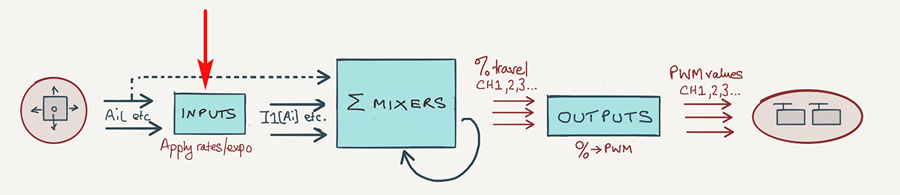
Inputs are great for easy adjustment of control surface travels. In this article I'll explain how to use them.
What are inputs?
Inputs are a type of source. They differ from raw sources (sticks, sliders etc.) in that they carry a weight and expo. While you can specify weight and expo in mixes, setting rates in inputs (and leaving mixer rates at 100%) are the preferred method for the following reasons:
- Inputs offer a single point of adjustment for rates and expo. This makes adjustment easier for dual ailerons, elevons etc.
- Expo works best when applied at the beginning of the command chain.
- Trims behave better (constant 25% swing) when rates are set in inputs
In short, inputs should always be used where rate and expo are routinely adjusted, such as with aileron, rudder and elevator controls.
Single point of adjustment
Consider a setup for dual ailerons on, say, CH1 and CH2. Now, suppose we want to set the rate to, say, 86%. First, here's how to do it the 'wrong' way, using the sticks as the sources of the mixers:
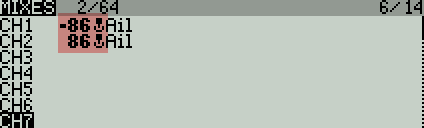
Although this will work, the weight has to be entered twice. Good practice dictates that duplicates should always be avoided if possible, to minimise the chance of errors.
We can solve this by using an aileron input as the source to the mixers and setting the mixer weight to 100%. Note that inputs are distinguished by having a prefix of 'I' instead of the stick icon.
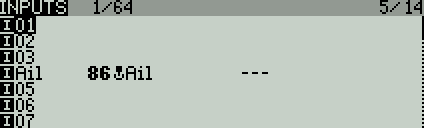
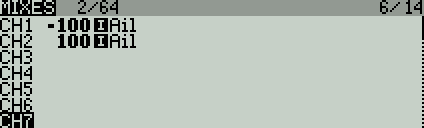
So now, to adjust the aileron rate, we only have to edit one item!
How trims are handled
The Input editor includes a Trim option. The default is 'On' as in the screenshot below:
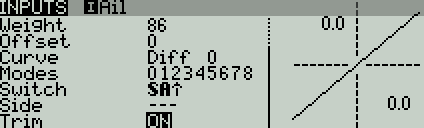
If Trim is set to 'On', then the full +/-25% of trim travel is supplied to the output, regardless of weight. If trim is set to 'Off', then the trim contibutes nothing.
Where inputs are not used
Inputs aren't necessary for controls which do not require rates or expo. These include
- throttle
- crow brakes
- camber adjustment
- air brakes
You can use the regular sources for these. It's good practice to delete any inputs which are not used.
Creating and managing inputs
Inputs are managed in the Inputs menu. There are 32 inputs available, each identified by a label of the form [I]xxx. In order to do anything useful, an input must have one or more lines specifying source, weight, and diff/expo.
- Source is the raw control (stick, knob etc.) on which the input is based.
- Weight is the rate as a percentage of the raw control.
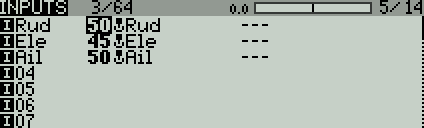
Here's a screenshot of the Inputs menu:
And here are screenshots of the editor:
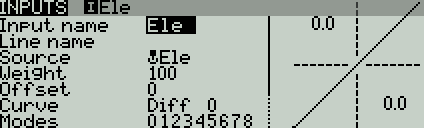
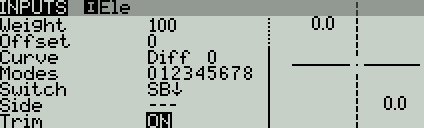
The fields are as follows:
- Input name: Descriptive name for the input
- Source: The stick on which the input is based
- Weight: The weight to apply
- Offset: Offset to apply
- Curve: Diff, expo or custom curve to apply to the input (note: do not use for aileron differential)
- Modes: Flight modes condition
- Switch: Switch condition
- Side: Side condition (activates for only one side of stick)
- Trim: Include trim
The Switch, Flight mode and Side conditions must all be satisfied, otherwise the input line will be ignored.
Order of processing
Within an input, the order of processing is source-value > curve > weight > offset > trim
System generated inputs
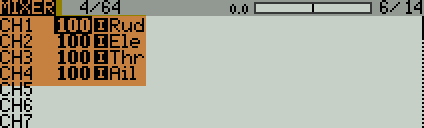
When you create a new model, OpenTx automatically sets up four inputs [I]Ail, [I]Ele, [I]Thr, [I]Rud. The sources of these inputs are the corresponding sticks.
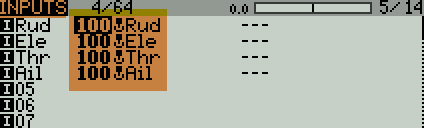
OpenTx also creates four mixers with these inputs as sources. Here's a screenshot of the Mixers menu:
Using inputs to create dual and triple rates
An Input may have more than one line, each with its own switch and/or flight mode conditions. You can use this to implement dual/triple rates, or to set rates automatically according to the active flight mode.
Here's an example of triple rates for aileron, using switch SB:
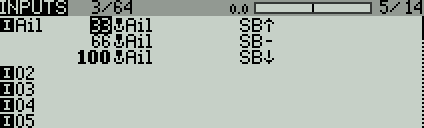
How it works:
- OpenTx starts at the top line. It checks the actual position of SB.
- If there's a match (SB is up), that rate becomes active.
- If there's no match, advances to the next line and repeats the test.
- And so on, until a match is found or the list is exhausted.
If the end of the list is reached without finding a match, the input will freeze. This opens the door to a critical failure unless precautions are followed! We'll look at this in more detail in the next section.
The 'CATCHALL' line
In this section, I'll show how a simple error can have serious consequences, and how to guard against it.
Let's repeat the example in the screenshot above. This time, let's imagine that I made an error in the middle line by typing typing 'SA' instead of 'SB':
I1:Ail
Ail Weight(+33%) Switch(SB↑)
Ail Weight(+66%) Switch(SA-) -- mistake: SA- instead of SB-
Ail Weight(+100%) Switch (SB↓)
The intention is to have 66% rates when SB is in the middle position. However, because of my 'error', both SA and SB would have to be in the middle for the 66% rate to be selected.
Furthermore, if SB is in the middle and SA is not in the middle, then none of the lines will match, and the aileron will freeze! Why? Because, as we saw earlier, if the end of the list is reached without a match, the input will not function at all!
So whether or not you crash will depend on the position of SA.
This is where a 'catchall' line comes into play. A 'catchall' is a line without any condition, placed at the end of the list.
I1:Ail
Ail Weight(+33%) Switch(SB↑)
Ail Weight(+66%) Switch(SA-) -- mistake: SA- instead of SB-
Ail Weight(+100%) Switch (SB↓)
Ail Weight(+100%) -- Catchall line
By omitting a condition in the last line, you're guaranteed a match regardless of any errors in the lines above. The rate may not be what you expect, but at least the aileron will continue to function!
How to make a CATCHALL line
To create a catchall line:
- Add an input line at the end of the list
- Set the 'switch' field blank
- Tick all flight modes
- (Optional) set the label to 'Catchall'
Using a catchall as a default
A catchall line can also function as a default setting to simplify the input list. So in the example below, SB-up corresponds to low rate, all other positions fall through to the catchall line for a 50% rate.
I1:Ail
Ail Weight(+33%) Switch(SB↑)
Ail Weight(+50%)