P4000 Backup / Dosbox
28th May 2020
Please note I am not able to provide support or advice on Doxbox or the backup program. Use it at your own risk!
P4000 / DOSbox provides backup and restore of model memories for the mc4000 transmitter. It uses Multiplex's original backup program running in a modified open source DOS emulator ('DosBox').
18th November 2007
Multiplex advise against running DOSBOX on PC's with a clock speed greater than 300 MHz. Otherwise there is a small risk of corruption to the transmitter's RAM. This will generate a RAM PAGE 6 error at switch on, which will require a return to your local service agent for fixing. If you already use a faster PC and have not experienced any problems, you can ignore this warning.
Screenshot
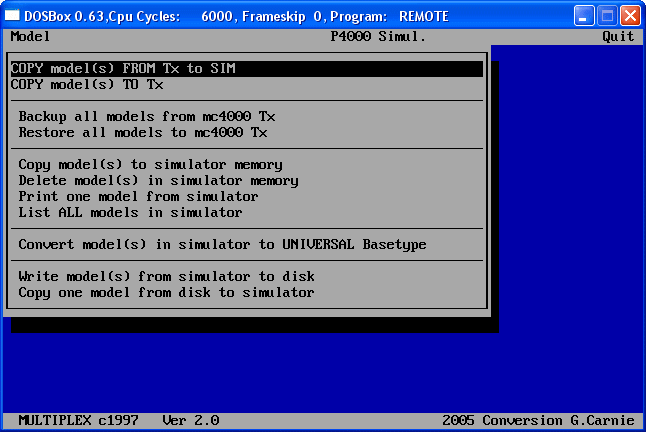 DOS backup software running in Windows XP
Background
Multiplex's backup software was written for MSDOS, and did not work reliably on modern hardware and/or Windows.
The solution adopted here is to run P4000 under a DOS emulator. A DOS emulator provides a virtual DOS environment, allowing a modern Windows system to run old DOS applications.
The DOS emulator provided with this package has been modified by Stuart Carney to handle comms from the transmitter. It runs under Win 32 operating systems, including Windows XP.
System Requirements
- Multiplex mc4000 with V2 firmware only.
- PC <= 300 MHz
- 32-bit Windows (e.g. Windows XP)
- Multiplex PC Data Cable. Alternatively cable + interface shown on Neil Gillies site can be used.
Instructions
These instructions take you through installation of DOSbox, setup of
P4000, and Tx connection.  German users, please see Wolfgang Märkle's site.
Installation
- Download the ZIP file (1.2 MB ZIP file)
- Create folder c:\dosbox. Note: you must use this folder name.
- Unzip the package files into c:\dosbox
- Copy shortcut entitled P4000 to
your desktop. The shortcut file is identified by the tiny arrow
at the bottom left of their icons i.e.

Configuring P4000
If COM1 is used, no special configuration is required. If another port is used, see FAQ below.
Shortcut keys for P4000
- <ALT> selects the main menu
- Left and right arrows move between menu options.
- <space> cycles between options, or selects an item in a multi-select list.
- <Enter> selects an option
- <ESC> cancels
To run P4000 without connecting the Tx
- Double Click P4000 shortcut
- When message “Waiting connection with P4000” appears, press <Alt> key momentarily. "Connection Established” will be displayed (of course there is no actual connection but you can operate the simulator).
To run P4000 with your the Tx
- Connect your Tx to the PC's COM1 port using your PC data cable.
- Double Click P4000
- When message “Waiting connection with P4000” appears, hold the '-' (minus) key on Tx while switching on Tx. After a short delay, "Connection Established” will appear.
You now now backup, restore etc.
P4000 Documentation
Here's a PDF containing the factory documentation for P4000. Ignore the warnings about not installing under Windows!
Credits
The DOS emulator is modified from the open source DOSBox project. Stuart Carnie altered the serial comms code to enable it to communicate with the mc4000, and also made various other tweaks. George Carnie translated the menus in P4000 from German to English. Thanks a lot guys!
User Group
There is a user group on Yahoogroups where you can get queries answered - or just show your appreciation. You can join in one of two ways:
- By sending a blank email to p4000dosbox-subscribe@yahoogroups.com
- By visiting the website http://groups.yahoo.com/group/p4000dosbox
FAQ
- I cannot establish a connection between the PC and Dosbox.
- The most common cause is that you're using a COM port other than COM1. By default Dosbox is configured to use COM1. If you are using another port the configuration file will need to be altered:
- Using
a text editor e.g. notepad, locate the entry in the file dosbox.conf with
the line
realport=COM1
and change it to
realport=COM2 (or COM3 etc.)
Note: You must not alter the COM port selection in the P4000 Setup program. It should only be changed in dosbox.conf as shown
- - P4000 software is slow or unresponsive
OR
- When backing up, P4000 displays an alert box with "communication error" - Try running DOSBox in full screen mode as follows:
1. Launch Notepad
2. Open the file file dosbox.conf
3. Locate the entry with the line
fullscreen = false
4. change it to
fullscreen = true
5. Save the change and close Notepad.
(Note: Using <ALT>+<Enter> to enter full screen is not recommended since the P4000 software uses the <ALT> key for menu navigation.) - How do I print my model configurations?
- Models are 'printed' to the file print.txt in
folder c:\dosbox. You'll need to load the
file into a text editor and print from there.
To keep separate files for each model, locate the file and rename it to something like <model>.txt eg cobra.txt. That way you can easily recall and print your old configurations.
Disclaimer
All info is supplied in good faith and many people have used this Dosbox / P4000 successfully. However neither the authors nor the web site will be responsible in the event of any loss or damage as a result of using this software.